
Do you ever get Excel files where the sheet name changes on you every single time? It’s like a never-ending puzzle in my ETL workflows, and trying to automate it? Nightmare. I know, I know, you’ll probably say ditch Excel, but good luck telling that to the clients.
But guess what? SSIS has a slick trick up its sleeve to deal with this mess – scripting to the rescue!
As you can see, I have an Excel file with the sheets named with a date. The next time I receive this file, the sheet will have a different name.

This sucks because the Excel Source in SSIS only lets me specify sheets by name, and that name is different each time this file comes in. If I don’t rename the sheet, I would need to update my Excel Source. Every. Single. Time.
To solve this, in my SSIS package, I’ll add a script task.

Double-click on the script task, and make sure the script language is set correctly. You could use Visual Basic here if you are more comfortable with it, but I’m using C#. Also, I have the path for the Excel file as a variable in my package. So, I want add it to the list of read-only variables the script has access to. We aren’t changing the path here, so it doesn’t need to be read-write.

Then, click “Edit Script…” to launch into the code. The first thing we need to do is add a reference to the Excel Interop libraries. So, in Solution Explorer, right-click on References and click Add Reference. In the Reference Manager window, you can search for “Microsoft.Office.Interop.Excel”. Choose the correct version for your environment, and click OK.

At the top of the script code, expand the Namespaces region and add the following:
using Microsoft.Office.Interop.Excel;
using System.Collections.Generic;
Then, go down into Main() and add your script code. Basically what we are doing is opening the Excel file, looping through all the sheets and renaming them, then saving and closing out of the Excel file. I’m naming the sheets “Sheet1”, “Sheet2”, “Sheet3”, and so on, but obviously you can name them whatever you want.
Microsoft.Office.Interop.Excel.Application app = new Microsoft.Office.Interop.Excel.Application();
Workbook xlBook;

try
{
  // Using the Excel file path variable
  xlBook = app.Workbooks.Open(Dts.Variables["User::ExcelPath"].Value.ToString());
  int numSheet = 1;

  // Get a list of all the sheets in the file
  // Loop through and set the names
  // I'm setting the names to Sheet1,Sheet2,Sheet3,etc.
  List<Worksheet> sheets = new List<Worksheet>();
  foreach(Worksheet xlSheet in xlBook.Worksheets)
  {
    xlSheet.Name = "Sheet" + numSheet.ToString();
    numSheet++;
  }

  xlBook.Save();
  xlBook.Close();
}
catch (Exception e)
{
  MessageBox.Show("Rename Failed: " + e.Message);
}
finally
{
  app.Quit();
  app = null;
}

Dts.TaskResult = (int)ScriptResults.Success;
Save the file and close the VSTA window. Click OK to save the script task. Now, if I execute that task, you can see the sheet name has been updated.
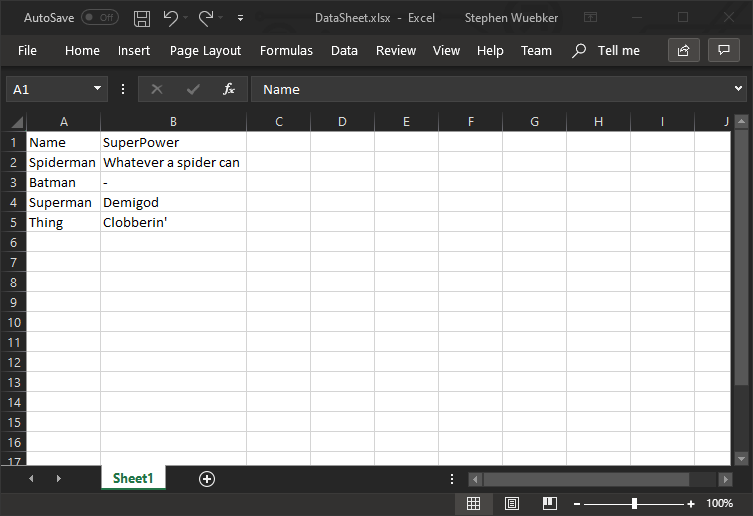
Now I can set my Excel Data Source to always import data from “Sheet1”, and don’t have to worry about changing the package every single time I get this data to import.
One more thing to do is to go into the properties for any task that uses the Excel file and set DelayValidation = True. If you don’t, the package will fail because the task is expecting sheets that don’t actually exist.